

Connect an AI assistant
Use Setherion from your assistant.
Claude, ChatGPT, Claude Code, Cursor or VS Code can list your apps, change them and publish them, from the chat you already use.
What your assistant can do.
An MCP server
Setherion has an MCP server, the standard way AI assistants use other services.
No key to copy
You sign in to Setherion once and press Allow. There is no key to copy.
Find your apps
Lists your apps, with their addresses if they are published, and finds one by its name or description.
Edits, like the editor
Changes an app from an instruction, the same way the editor does.
Saved, then published
An edit is saved in your app as soon as it finishes, but it is not online until the app is published.
Publish from the chat
Puts the saved app online at its address.
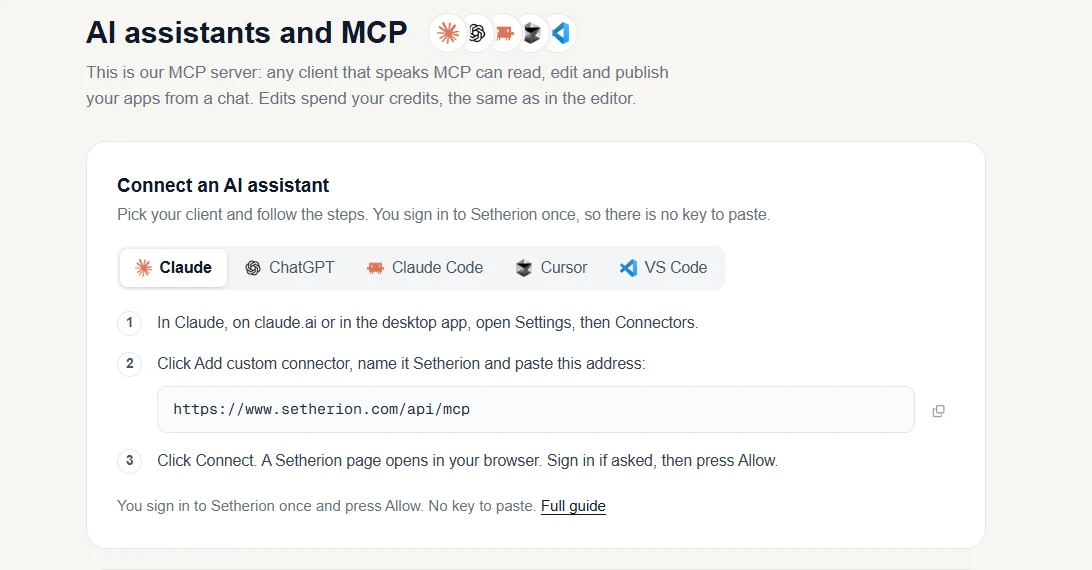
Pick your assistant.
The same steps are in Setherion too: open Settings, then AI assistants and MCP, and pick your assistant.
The steps for each assistant, in the documentation Claude
 ChatGPT
 Claude Code
 Cursor
 VS Code
Ask in plain words.
Once it is connected, you can ask your assistant things like
- change the button colour on my coffee shop site
- publish my calculator
For the app stores too.
The store guide
Says what the app still needs for Google Play and the App Store, and walks you through the steps, Easy or Native, one at a time.
The privacy answers
Gives the answers for Google Play's Data safety and the App Store's App Privacy forms, read from the app's code.
The store page
Writes the store page: the name, the descriptions, the subtitle and the keywords, within each store's limits, for you to copy.